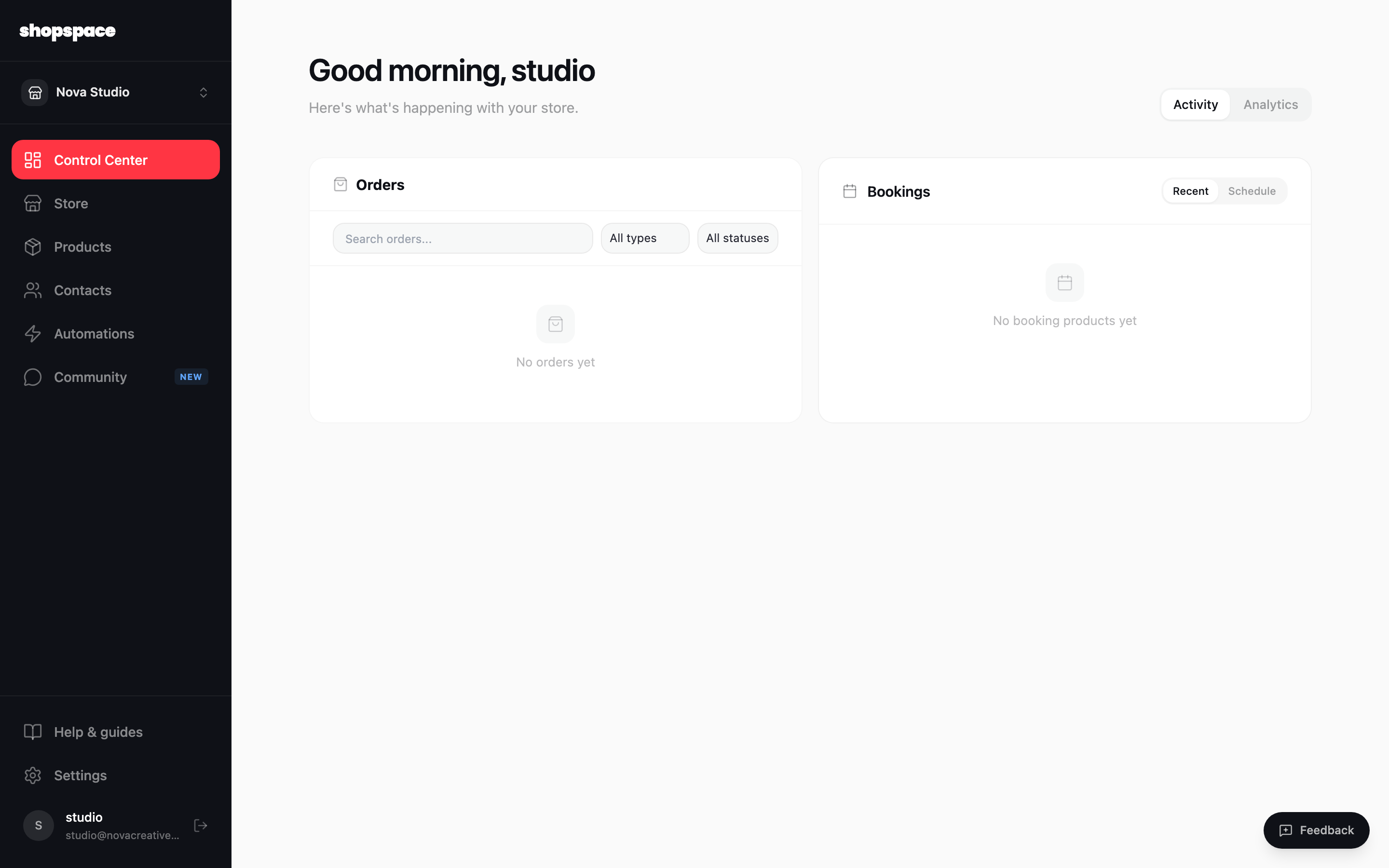
Control Center is the first thing you see when you open your store. It is your daily operations view: recent orders, upcoming bookings, and how the store is performing, all on one screen.
2 min · 2 steps
1
Track orders and bookings
Choose Control Center in the left menu. The Orders panel lists recent purchases with search and filters by type and status. The Bookings panel shows upcoming appointments, as a list or a schedule.
2
Switch to Analytics
Use the Activity and Analytics toggle in the top right to move from the live activity feed to your sales numbers and top products. It is the quickest way to see how the store is doing without leaving the page.
Good to know
Open an order to see its full details, including the customer and shipping address, and update its status.
Orders, bookings, and performance all live here, so you do not have to hunt through separate pages.