Automations run actions for you when something happens, like a new purchase. You build them visually by picking a trigger and adding the steps that follow. Here is a simple post-purchase follow-up.
5 min · 4 steps
1
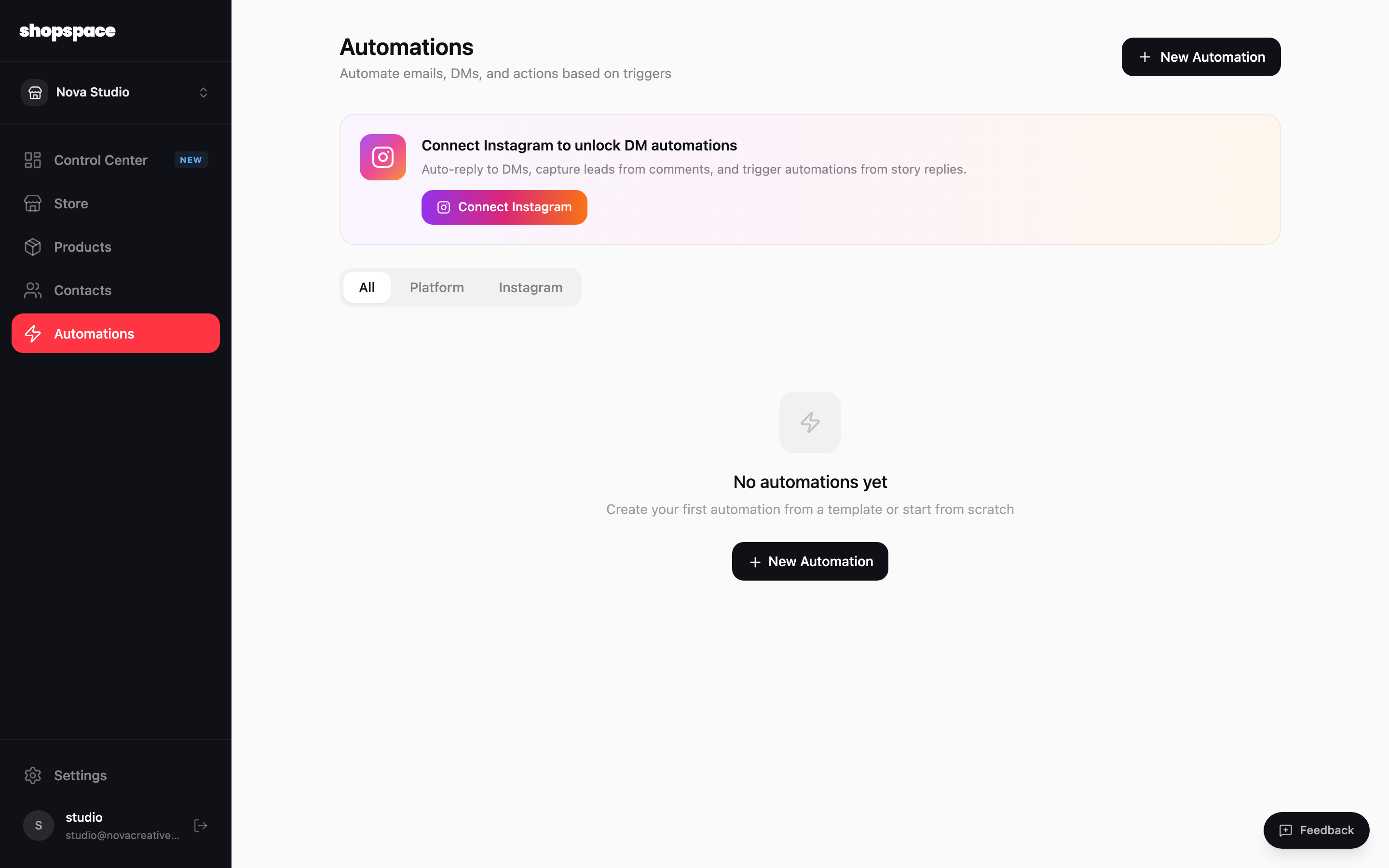
Open Automations and click New Automation
Choose Automations in the left menu, then click New Automation in the top right.
2
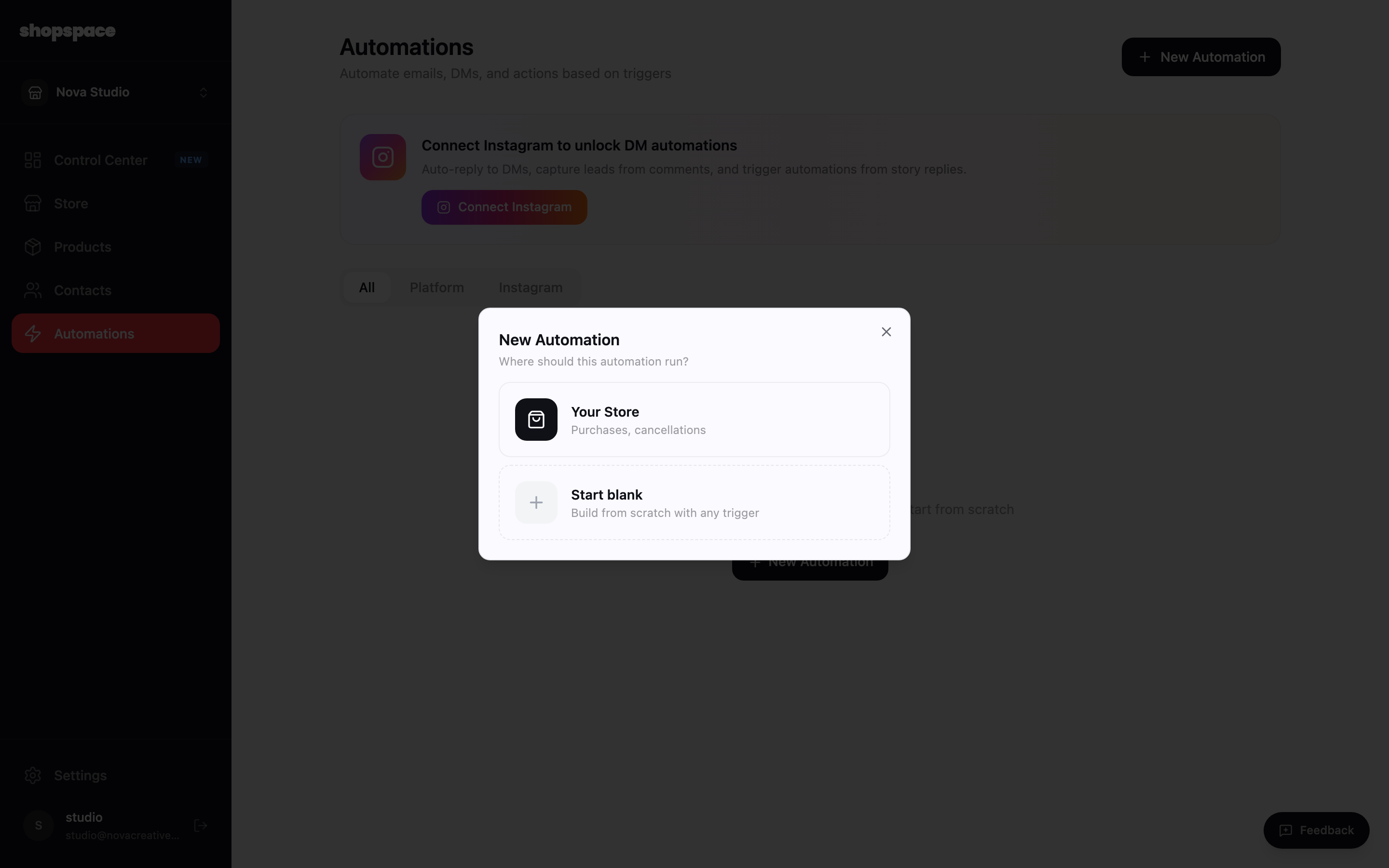
Choose where it runs
Pick Your Store to react to store events like purchases and cancellations, or Start blank to build from any trigger.
3
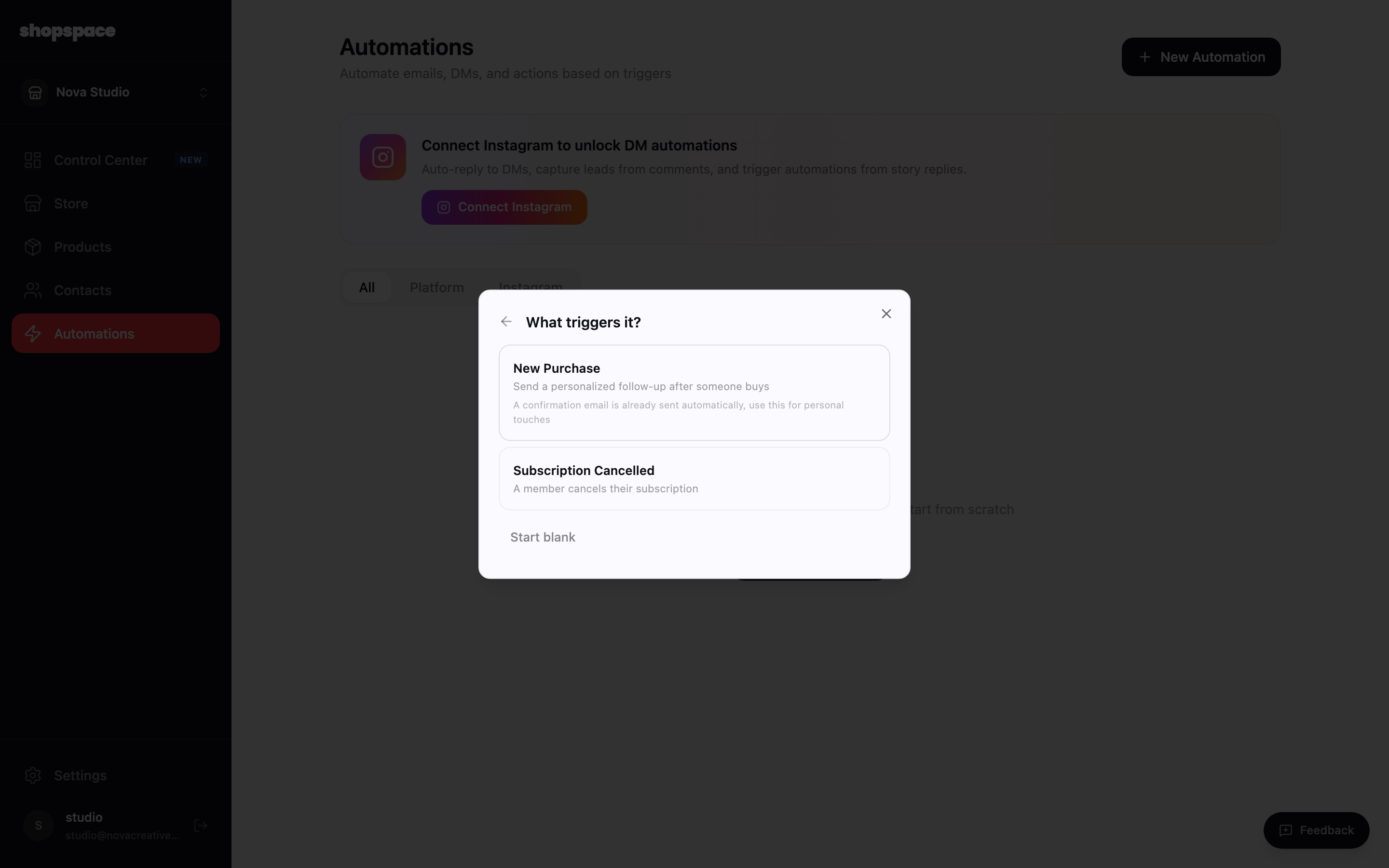
Pick the trigger
The trigger is what starts the automation. Choose New Purchase to run something every time a customer buys.
4
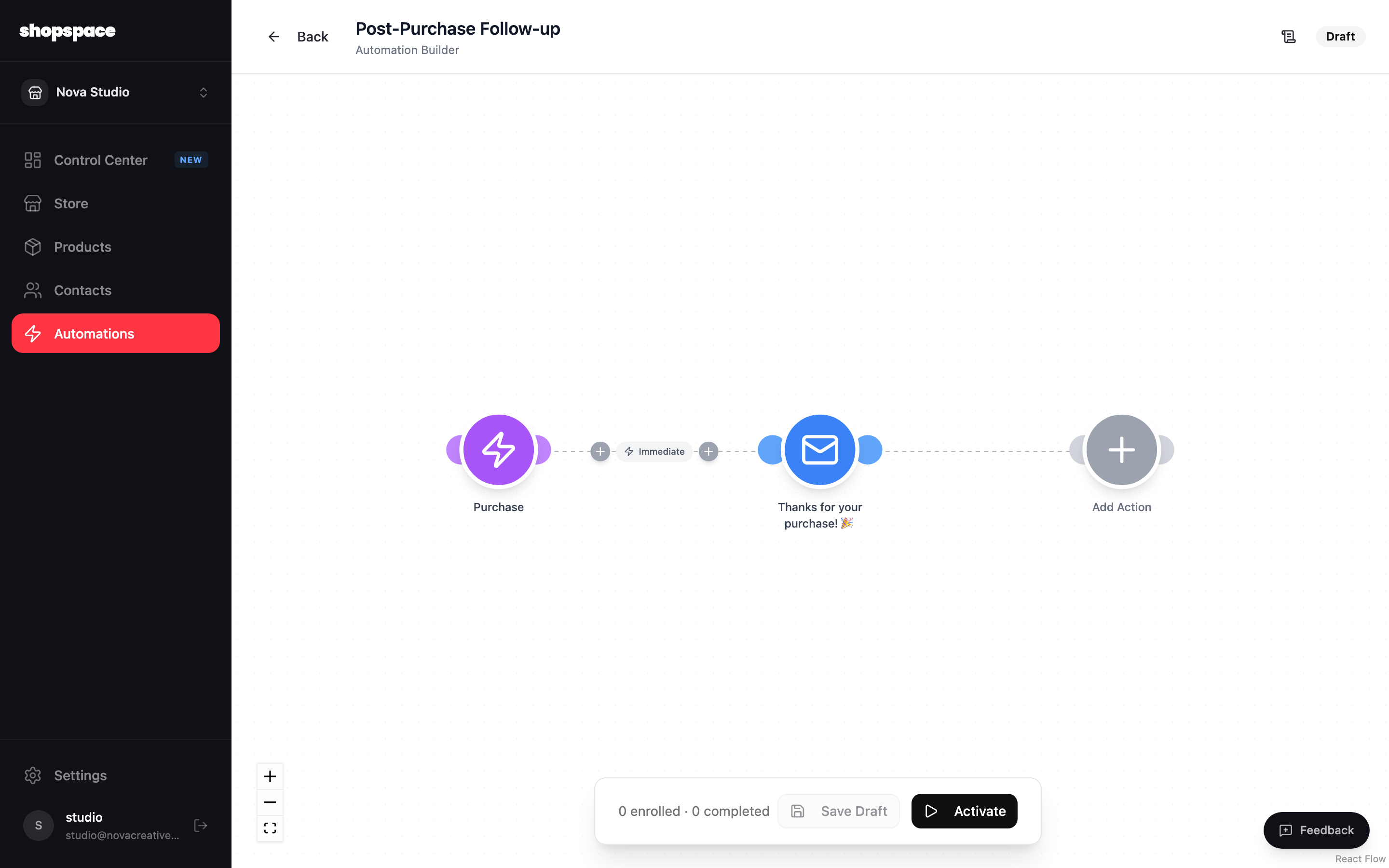
Build the flow and activate
You land in the visual builder. Your trigger sits on the left, followed by the actions that run. Add an email, a delay, or another step by clicking the plus. When it looks right, click Activate to turn it on.
Good to know
A purchase confirmation email is already sent automatically, so use automations for the personal touches: a thank-you note, a how-to, or an upsell.
Save as a draft while you build. Nothing runs until you click Activate.