Design your store
Your storefront ships with a set of templates, each in a light and a dark look. You can also set one brand color that every button across your store uses. Here is how to make it yours.
Open the Design panel
Go to Store in the left menu, then click the Design button in the top toolbar. The Design panel opens on the Templates tab.
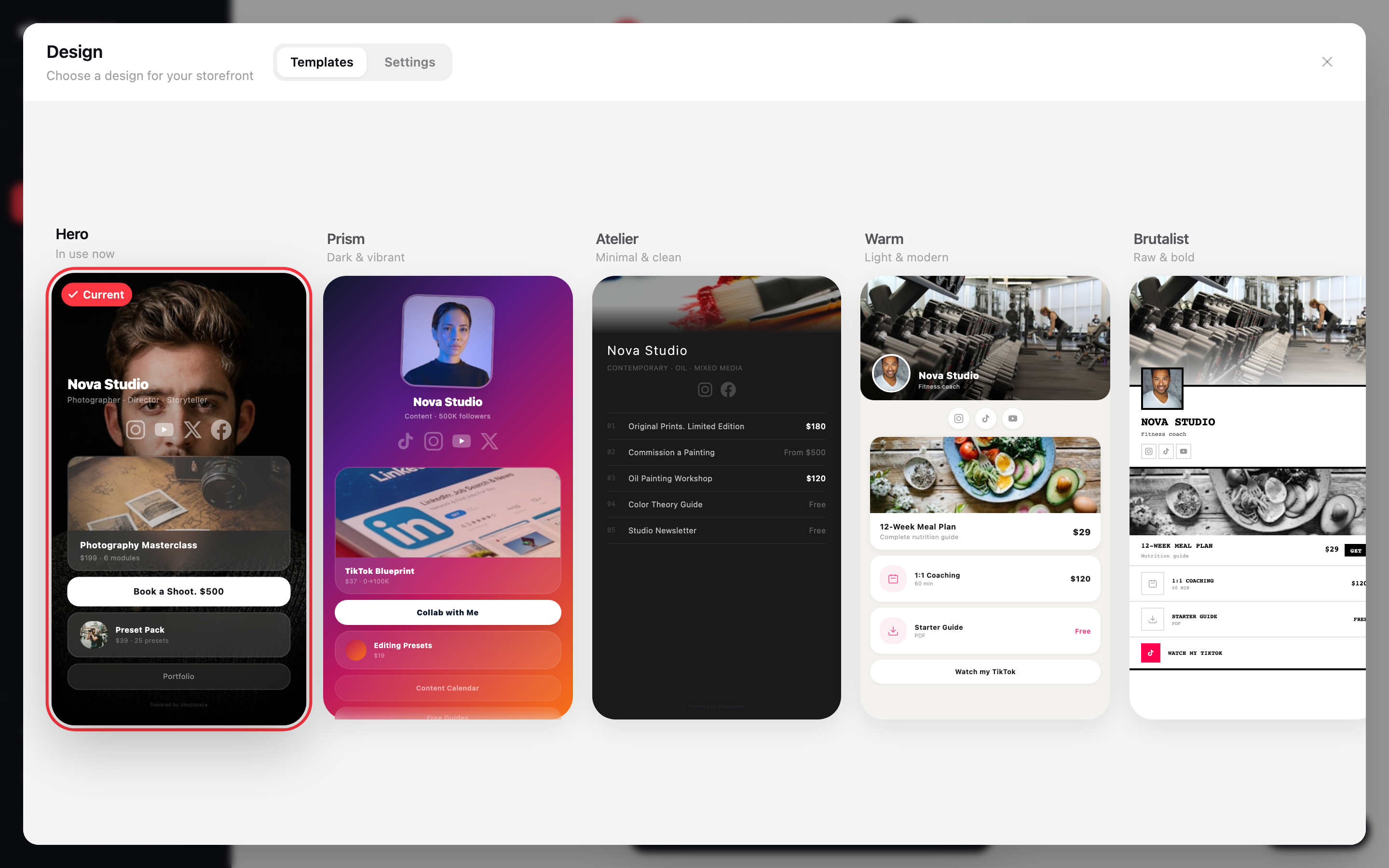
Pick a template
Each card is a live preview of your store using your real content. Click one to apply it. The template you are on is marked Current. Every template comes in both a light and a dark version, so pick the shape you like first.
Set colors and appearance
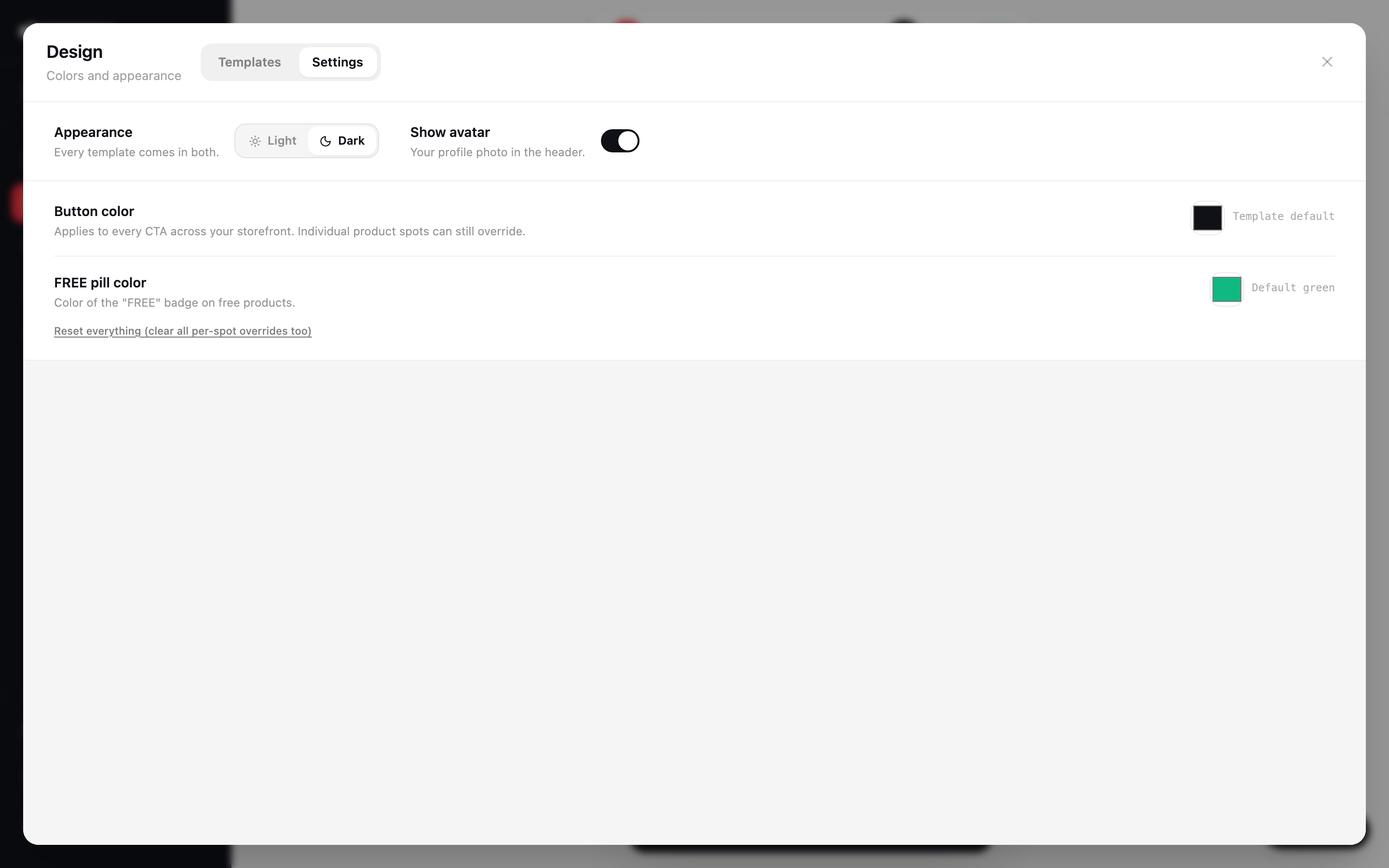
Switch to the Settings tab to choose Light or Dark, show or hide your avatar, and set your Button color. The button color applies to every call to action across your storefront, and individual product spots can still override it.
Good to know
- Switching template keeps all of your content and blocks. It only restyles them, so you can try a few looks without losing anything.
- Leave the button color on Template default to use the color the template ships with.