Roles and community access
Content access is decided by tier. Community access works a little differently: it is decided by roles. A role is a label you give members that controls which channels they see and what they can do there. The piece that ties it to your tiers is that a role can attach to a tier automatically, so paying for a plan can unlock a private channel.
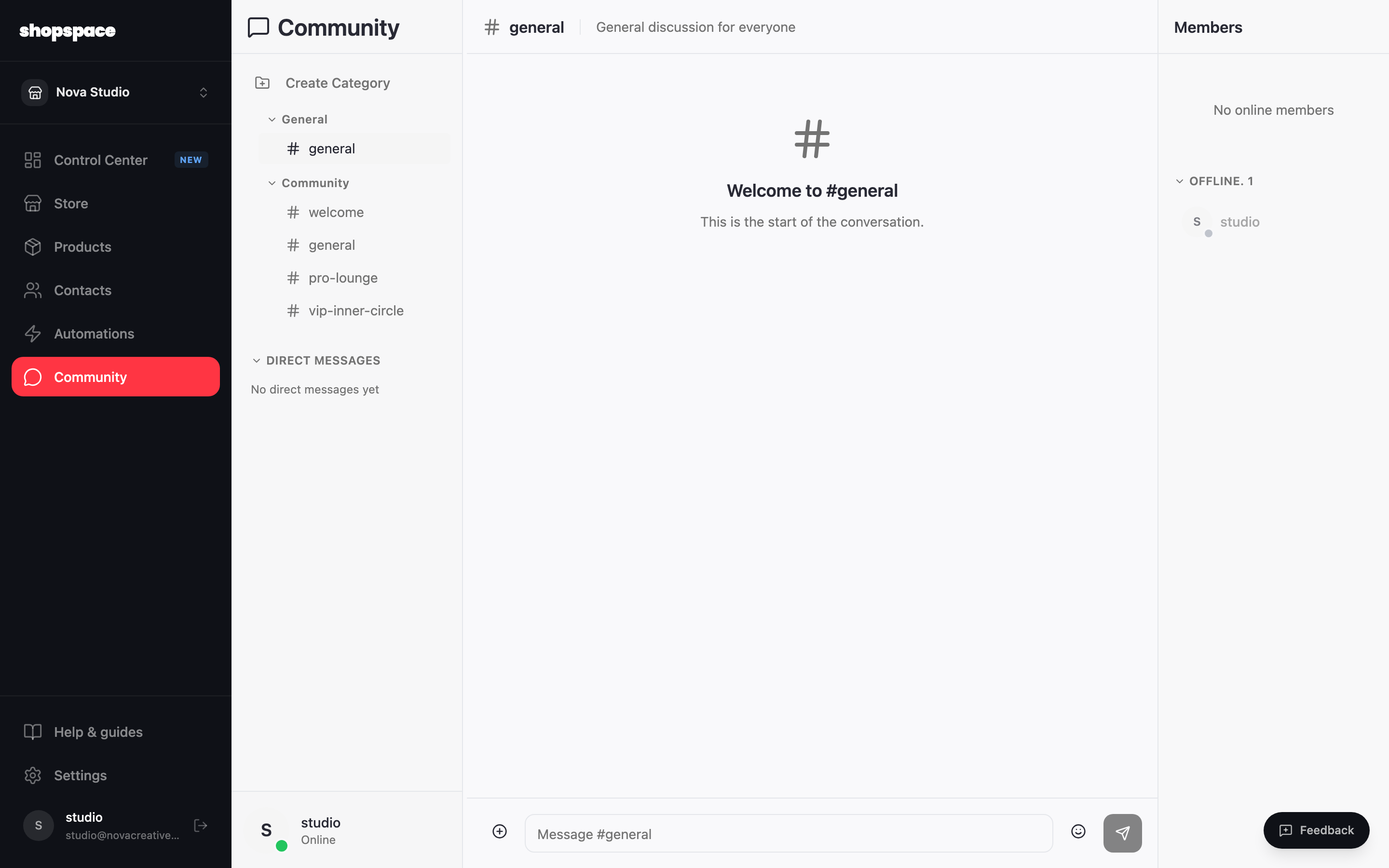
Open your community
Choose Community in the left menu. Your channels live here, grouped into categories. Everyone with community access sees the open channels. To make one members-only, you control it with a role.
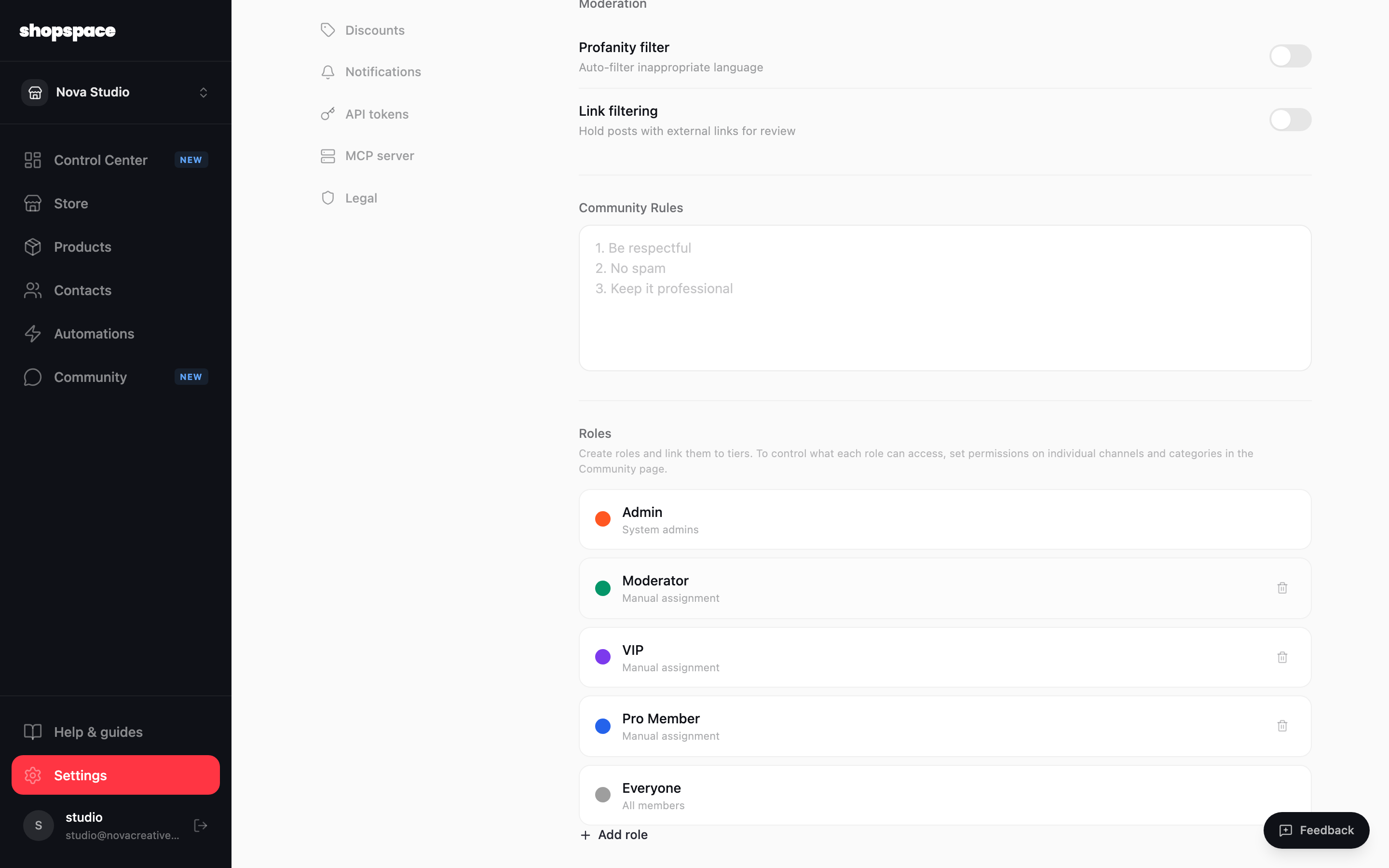
Create roles and link them to tiers
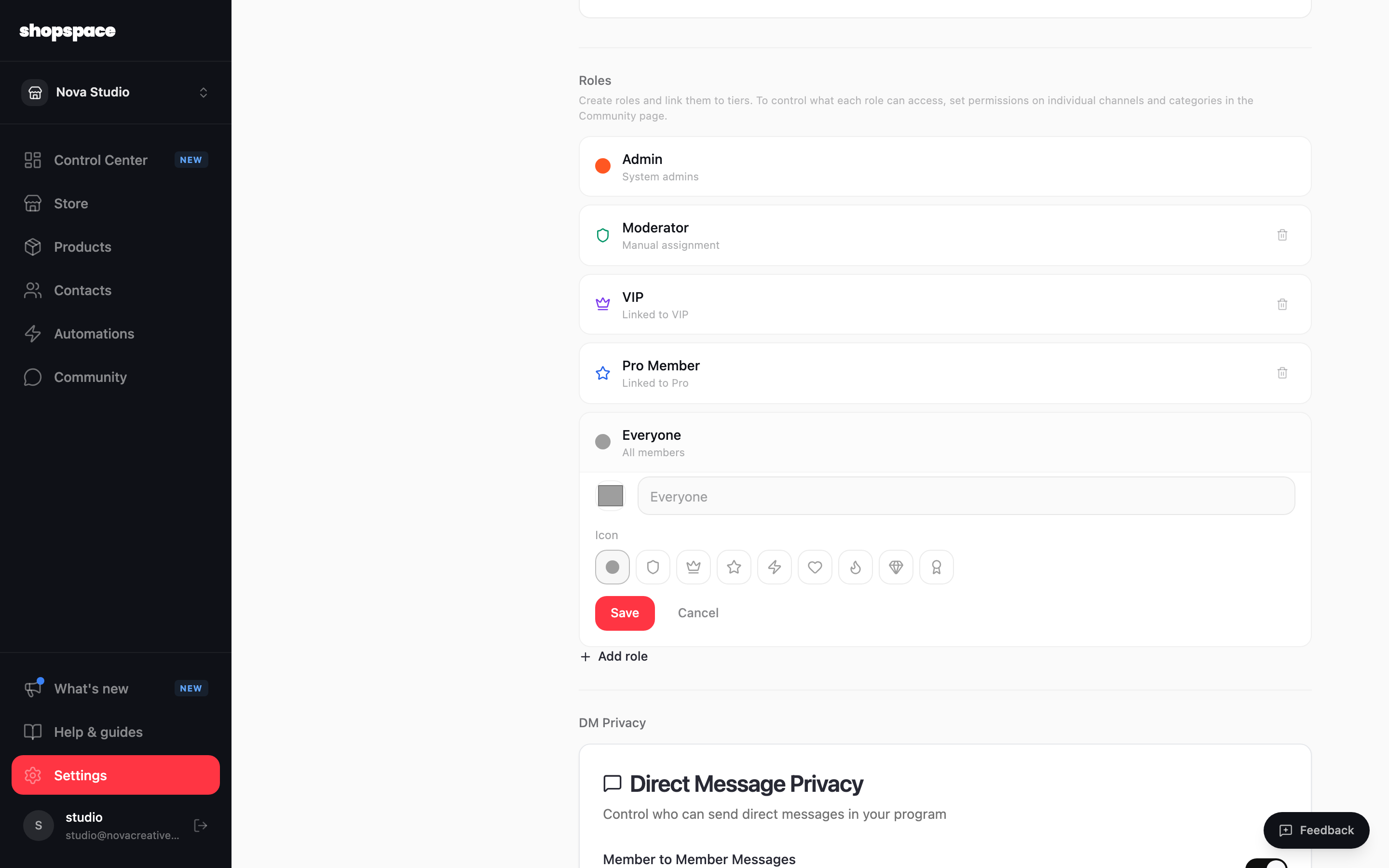
Open Settings, then Community, and find Roles. Create a role for each group you want, such as a Pro Member role and a VIP role. A role can be assigned by hand, like a Moderator, or wired to a tier.
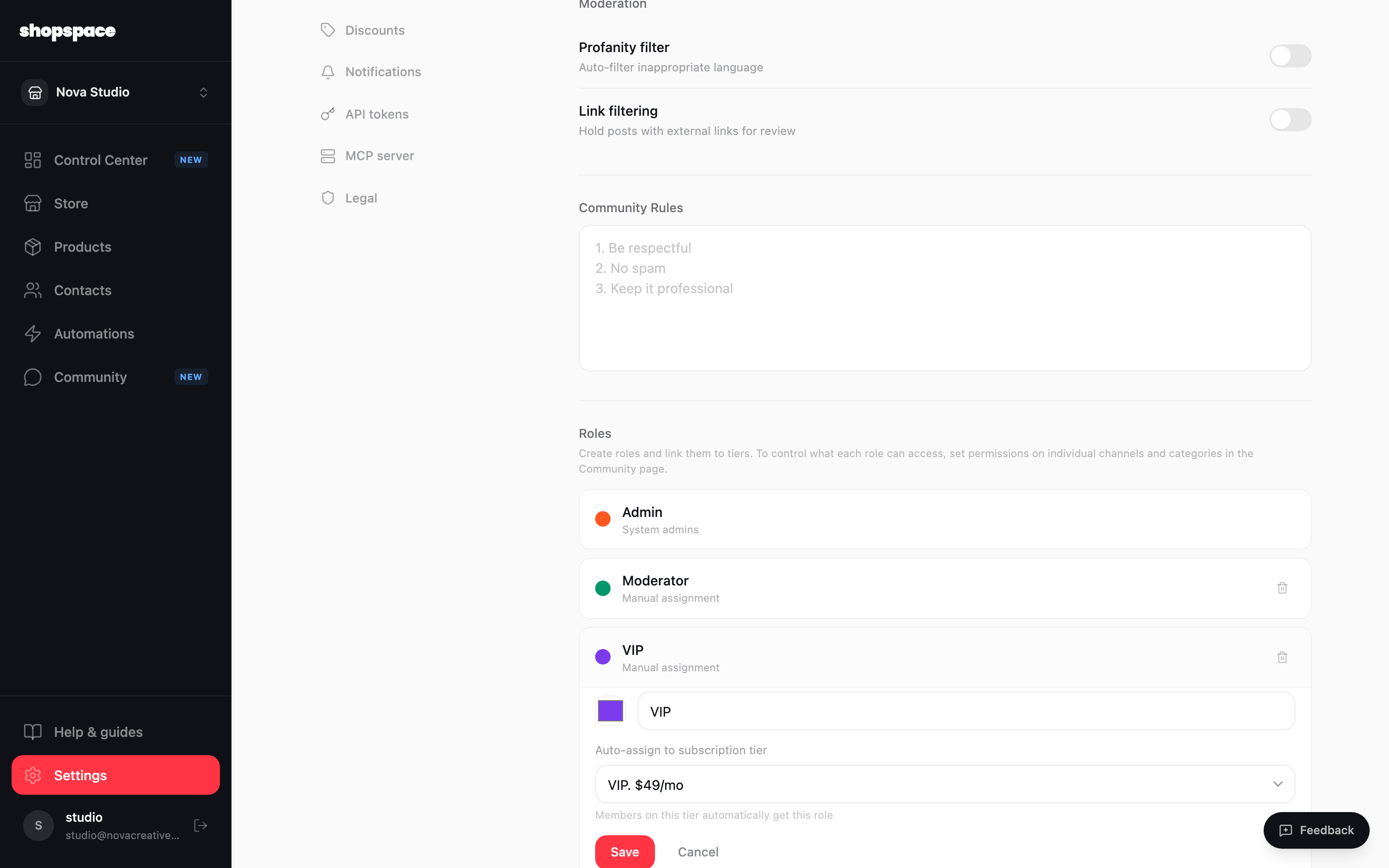
Auto-assign a role to a tier
Edit a role and set Auto-assign to subscription tier to the matching tier. Now everyone on that tier gets the role automatically, and loses it if they leave the tier.
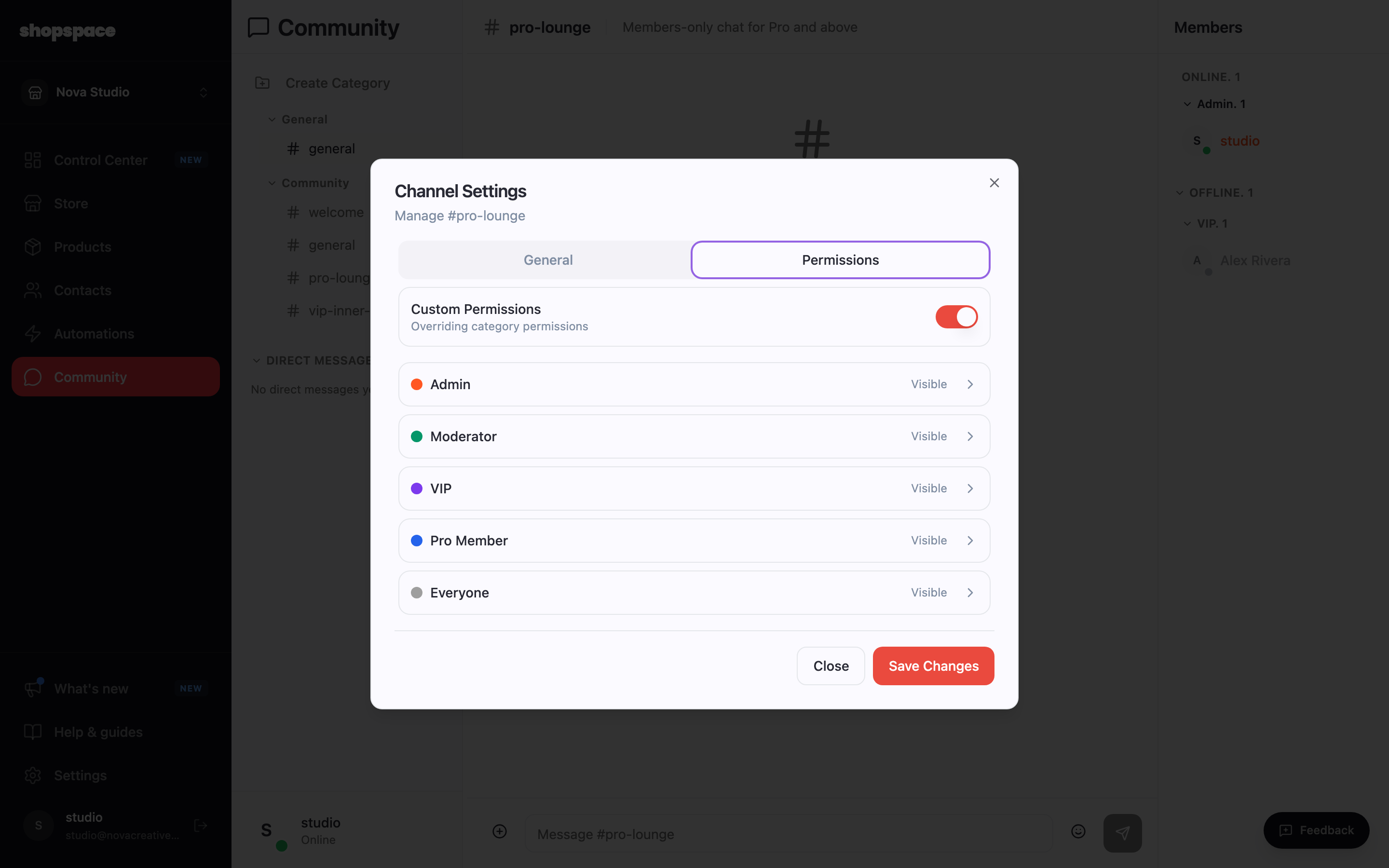
Decide which channels the role can see
This is the step that makes the role do anything. Hover a channel in the sidebar, open its settings, and choose the Permissions tab. Each role gets four switches: whether the channel is visible to them at all, whether they can post, whether they can delete their own messages, and whether they can read what was said before they joined. Turn Visible off for Everyone and on for your paid role, and the channel becomes private to that tier.
Give the role a colour and an icon
Open Settings, then Community, then Roles, and edit any role including the built-in Admin and Everyone. Pick a colour and an icon and members carrying that role are marked with it wherever they appear, so moderators and paid members are recognisable in a busy channel. Built-in roles can be styled but not deleted.
Good to know
- The simplest way to hold it in your head: a tier is what someone pays for, a role is what they can do in the community. Link the two and a purchase unlocks the right channels on its own.
- Manual roles are ideal for moderators and team members who are not tied to a paid plan.
- Channel permissions are set per channel, not per role, so the fastest way to build a private space is to create the channel first, then switch Visible off for Everyone.